

- Centralize Your Books: A Series Page groups all your titles on a single Amazon URL, allowing readers to buy the next book with one click.
- Fix Metadata Mismatches: If your books aren't linking, it’s usually because the "Series Title" field in KDP isn't an exact character-for-character match across all volumes.
- Boost Read-Through: Series pages reduce friction. Readers can see the entire reading order instantly, increasing the likelihood of buying the full backlist.
- Use "Contact Us": If the automated amazon series page creation doesn't work within 72 hours, you must use the KDP Help portal to manually request the linkage.
You have written the books. You have designed the covers. You have hit publish. But when you look at your Amazon product page, your books are floating in isolation. Readers finish Book One, but Book Two is nowhere to be found on the screen. You are forcing them to search for your name, sift through results, and hope they find the sequel.
That is friction. Friction kills sales.
The solution is amazon series page creation. This is the mechanism that binds your individual Kindle and print titles into a single, shoppable landing page. It is one of the most powerful assets in an author's arsenal because it turns a single transaction into a customer lifecycle. When you set this up correctly, Amazon allows readers to "Buy all items with 1-Click," significantly boosting your read-through rate (RTR).
This guide will walk you through the technical steps of linking your books, troubleshooting the notorious metadata errors that block series pages, and optimizing that page to rank higher in search results.
What is an Amazon Series Page?
An Amazon Series Page is a dedicated landing page that displays all the books in a specific sequence. Unlike a standard author profile or a search result page, the Series Page offers a clean, ordered list of your work.
From a customer experience standpoint, it changes everything. Instead of seeing random titles, the reader sees:
- The Series Title: (e.g., "The Jack Reacher Series")
- Reading Order: Clearly marked as Book 1, Book 2, etc.
- One-Click Purchasing: A button on the right side allowing them to buy the remaining unread books in the series instantly.
For the Amazon algorithm, this page creates a "series bundle" entity. It signals that these products are related, which helps Amazon's recommendation engine suggest Book 2 to someone who just bought Book 1.
The Difference Between "Linked" and "Series Page"
Many authors confuse these terms.
- Linked Formats: This is when your Kindle eBook and Paperback versions of the same book appear on the same product page.
- Series Linkage: This is when different books (Book 1, Book 2) connect to form a Series Page.
You need both. But today, we are focusing on the book series linkage that connects different stories into a unified brand.
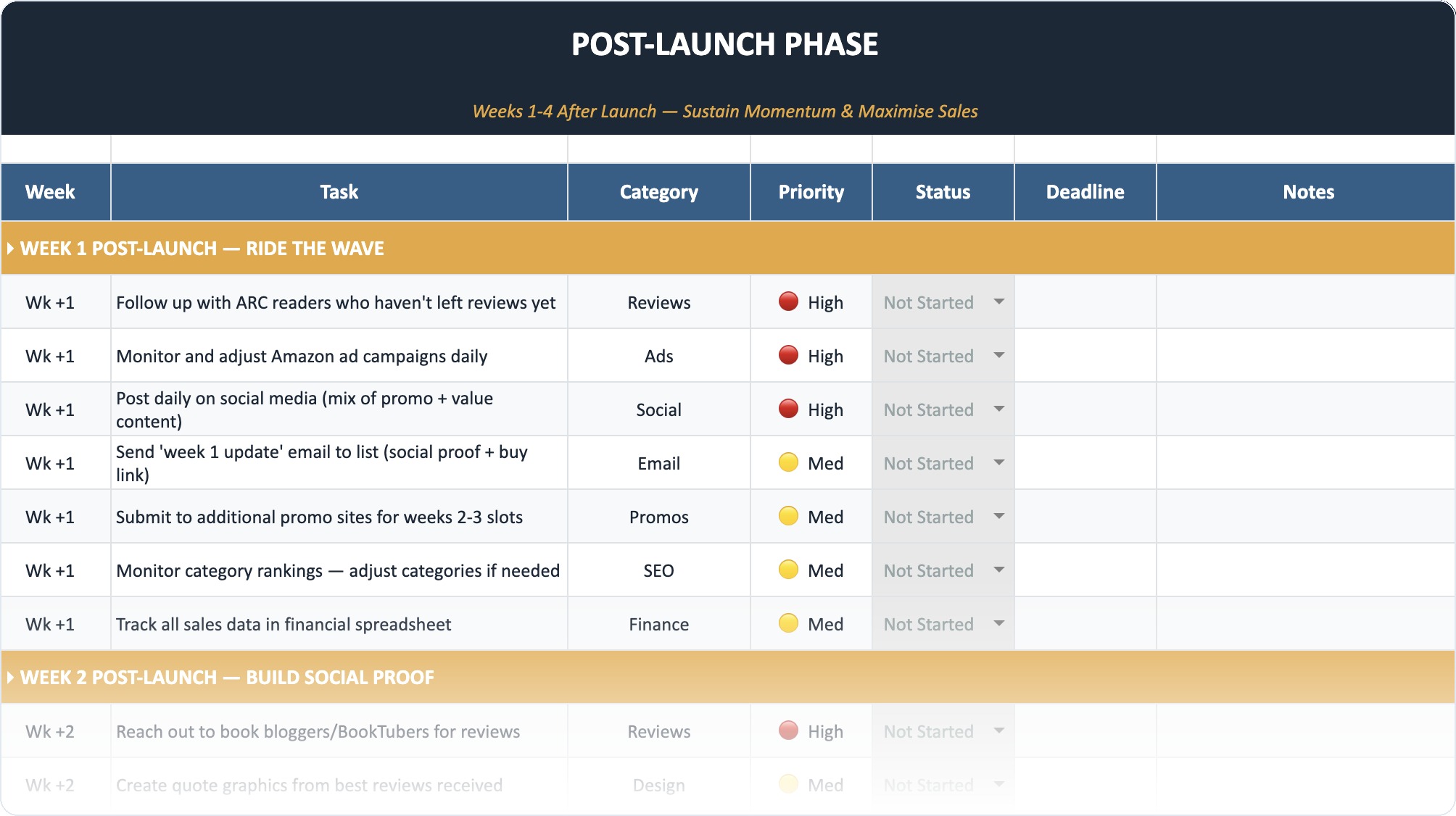
The Self-Publishing Launch Checklist (2026)
A week-by-week spreadsheet that walks you through every step of launching your book. Available as an Excel file and Google Sheet.
Why You Must Build a Series Page Immediately
If you have two or more related books and you haven't set this up, you are losing money every single day.
1. The Frictionless Funnel
The internet is distracting. If a reader finishes your book and puts their Kindle down, they might forget about you by tomorrow. If they click to the store and see the Series Page, they see the next cover immediately. The "Buy with 1-Click" feature removes the checkout cart process entirely. It capitalizes on the impulse buy.
2. "Series Bundle" Visibility
Amazon often ranks the Series Page itself in search results. If a user searches for your character name or series title, the Series Page often appears at the top, above the individual books. This looks more authoritative. It tells the reader, "This is an established world with plenty of content for you to binge."
3. Review Aggregation (Sort of)
While reviews don't "merge" across different books in a series, the Series Page displays the average rating for each book side-by-side. A row of 4.5-star books creates immense social proof. It shows consistency. A reader might be hesitant to start a new trilogy if they fear the ending is bad. Seeing high ratings on Book 3 reassures them that Book 1 is a safe investment.
Prerequisites for Amazon Series Page Creation
Before you log into your dashboard, you need to audit your metadata. Amazon's bots are extremely literal. They do not understand nuance. If you have slight variations in your data, the amazon series page creation process will fail.
The "Exact Match" Rule
To link books automatically, the following fields must match exactly across every single book in the series:
- Series Title: "The Dark Tower" is not the same as "Dark Tower" or "The Dark Tower Series." Choose one format and stick to it.
- Author Name: "J.K. Rowling" will not link with "J. K. Rowling" (notice the extra space).
- Primary Language: All books must be in the same language.
If you are just starting out and haven't published yet, you might want to read my thoughts on Amazon KDP keywords and selecting the best ones to ensure you are choosing metadata that actually has search volume before you lock in your series title.
Step-by-Step Guide: How to Create Your Series Page
There are two ways this happens: Automatically (if you are lucky) and Manually (which is what usually happens). Here is the manual method to ensure it gets done right.
Step 1: Access the KDP Bookshelf
Log in to your Kindle Direct Publishing (KDP) account. Locate the first book in your series.
Step 2: Edit eBook Details
Click on the ellipsis button (…) next to your Kindle eBook and select "Edit eBook Details."
Scroll down to the Series section. You will see fields for "Series Title" and "Volume Number."
- Series Title: Enter the name of your series.
- Volume: Enter "1".
Pro Tip: If you are writing a prequel, you can usually enter "0" or decimal points like "0.5" for novellas, though Amazon sometimes hides these from the main numbered list.
Step 3: Create the Series Container
Once you enter the information for Book 1 and hit "Save and Continue," Amazon creates a "Series" identifier in their backend.
Now, go to Book 2. Repeat the process.
- Series Title: Enter the exact same text you used for Book 1.
- Volume: Enter "2".
Step 4: The "Add to Series" Button
Recently, Amazon updated the KDP dashboard to make this easier. On your main Bookshelf, you might see a button specifically labeled "Manage Series" or "Create Series."
- Click "Create Series."
- Select "Ordered" (for sequential books like Harry Potter) or "Unordered" (for standalones like Jack Reacher, though even those are usually ordered by publication date).
- Select the books from your bookshelf that belong in this group.
- Confirm the order.
If you have done this correctly, Amazon will generate the page within 72 hours.
Stop Staring at a Blank Page
Publy is a distraction-free book editor with AI built in. Brainstorm plot ideas, get instant chapter reviews, or rewrite clunky paragraphs. 3 million free words included.

Troubleshooting: Why Your Books Won't Link
This is the most common frustration for authors. You entered the data, but the Series Page isn't appearing, or Book 3 is missing.
The Metadata Mismatch
As mentioned, check your spelling. I cannot stress this enough. I once spent a week trying to link a client's books only to realize Book 1 was "The Iron King" and Book 2 had "The Iron King " (with a trailing space) in the series field. Computers hate trailing spaces.
The "KDP Help" Solution
If 72 hours have passed and your books are still lonely, you need to force the issue. The automated bots have failed. You need a human.
- Go to the KDP Help center (click "Help" at the top of the dashboard).
- Scroll down to "Contact Us."
- Select "Amazon Store & Product Page" -> "Link your books to a series."
- You will be given a form. Provide the ASINs (Amazon Standard Identification Numbers) of the books you want to link.
- Clearly state the reading order.
Template for KDP Support:
"Hello, I would like to update the Series Page for 'Series Name'. Please link the following ASINs in this order:
Book 1: ASIN
Book 2: ASIN
Book 3: ASIN
Thank you."
Usually, support will fix this within 24 hours.
Domain Restrictions
Note that Series Pages are domain-specific. A Series Page on Amazon.com (US) does not automatically generate a Series Page on Amazon.co.uk (UK) or Amazon.de (Germany). Sometimes they propagate automatically, but often they do not. You may need to contact KDP support separately for different marketplaces if you notice significant gaps in your international sales.
Optimizing Your Series Page for Conversions
Just having the page isn't enough. You need to make it sell.
1. The Series Description
Did you know your Series Page has its own description? It does not just pull from Book 1. You can write a specific "hook" for the whole saga.
- Do not: Just copy/paste Book 1’s blurb.
- Do: Write a pitch that sells the world and the overarching conflict. "Follow Detective Smith through three decades of crime in London…"
If you struggle with writing copy, check out this guide on how to write a book description for Amazon. The principles of hooks and emotional beats apply to your series description just as much as your individual books.
2. Visual Consistency
Your Series Page displays your covers in a row. This is the moment of truth for your branding. Do the fonts match? Is the color palette consistent? If Book 1 looks like a thriller and Book 2 looks like a cozy romance, the reader will be confused. They won't trust that the experience is consistent.
3. Pricing Strategy
The Series Page makes price comparison easy. A common strategy is to have a "loss leader."
- Book 1: $0.99 or $2.99 (Low barrier to entry).
- Book 2+: $4.99 or higher (Profit generation).
Because the prices are listed right next to each other, the cheap entry point looks even more attractive next to the full-priced sequels.
Ordered vs. Unordered Series: Which Do You Choose?
When creating the page, KDP asks if the series is "Ordered" or "Unordered."
Ordered
- Best for: Trilogies, sagas, fantasy epics where you must read Book 1 to understand Book 2.
- Feature: Shows "Book 1 of 3" clearly.
- Amazon Behavior: pushes the user to buy the next book in the sequence.
Unordered
- Best for: Procedurals, cozy mysteries, or romance novels where characters recur but plots are self-contained.
- Feature: Lists the books but doesn't emphasize the number as strictly.
- Amazon Behavior: Allows the user to jump in anywhere without feeling "behind."
If you aren't sure, default to Ordered. Humans love numbered lists. We like knowing where to start.
The Power of the "Series Bundle" (Omnibus)
There is a secondary keyword we need to address: series bundle.
A Series Page is a virtual list of separate products. A Series Bundle (or Omnibus/Box Set) is a single product file containing multiple books.
You should do both.
Create a Series Page for the individual books. Then, create a new product called "The Complete Trilogy" (the bundle).
- Upload a single file containing all three manuscripts.
- Price it slightly lower than buying all three individually.
- Crucial: You can actually add this Bundle to your Series Page as a related item.
Why do this? Because it creates a new product page, giving you a second chance to rank in search results. Some readers prefer one big file (less clicking). It also counts as a single "read" for Kindle Unlimited page reads, which can keep a reader locked into your ecosystem for longer.
If you are looking for new formats to expand your catalog beyond just standard books, you might look into how to create and sell low content books, but generally, for fiction authors, the Omnibus is the highest ROI "new product" you can create from existing assets.
Common Mistakes to Avoid
1. Inconsistent Author Names
I mentioned this before, but it is one of the common mistakes new self-publishers make. If you use a middle initial on one book and not the other, Amazon treats you as two different people.
2. Forgetting the Back Matter Link
Inside the actual file of Book 1, the very last page should be a link. Do not just link to Book 2's product page. Link to the Series Page.
Why? Because if a reader clicks the Series Page, they see the reviews and the cover for Book 2, Book 3, and Book 4. It shows them the path forward. It upsells the whole brand, not just the next unit.
3. Ignoring KENP (Kindle Unlimited) Implications
If your books are in KDP Select, the Series Page is vital. KU readers are voracious. They want to know there are 5 books available to download for "free" (included in their sub). A well-organized Series Page signals to a KU reader that they can sink hours into your work. This drives page reads, which drives income.
Advanced Series Strategy: The "Prequel" Problem
Amazon struggles with prequels. If you label a book as "Book 0," it often appears at the end of the list or weirdly in the middle.
The Fix:
Many top authors do not officially number the prequel in the KDP metadata "Volume" field. Instead, they mention it in the Series Description: "Start with the prequel, Origins, before diving into Book 1."
Alternatively, link the prequel as a "Related Item" rather than a numbered entry in the main series list. This prevents confusion for new readers who might think they have to read the prequel first (which might be weaker than your main novel).
SEO for Your Series Page
Yes, you can do SEO on the Series Page itself.
Page Title:
Amazon generates this based on your Series Title. This is why generic titles like "The Trilogy" are bad. "The star-spanning sci-fi adventure series" is not a title; it's a tagline. A title like "The Crimson Empire" is unique and brandable.
URL Structure:
Once your Series Page is live, you get a clean URL. It usually looks like amazon.com/dp/B07XYZ123. You should use a link shortener (like Bitly or a redirection plugin on your author site) to create a pretty link like yourname.com/series. Use this link in your newsletter and social media.
Description Keywords:
Just like your book blurb, your series description is indexed. Use phrases that describe the genre tropes. "Dystopian survival," "Enemies to lovers," "Hard sci-fi." These help the Series Page rank in Amazon search.
If you want to dive deeper into the mechanics of increasing visibility, check out my guide on how to increase book sales on Amazon.
Conclusion
Amazon series page creation is not optional. It is the infrastructure of a successful publishing career. It turns a chaotic list of books into a professional, browsable shelf.
It reduces the cognitive load on your reader. Instead of asking them to hunt for your work, you are serving it to them on a silver platter.
Go to your dashboard. Check your series titles. Check your volume numbers. If they aren't linked, open a ticket with KDP Help today. Your read-through rate will thank you.
Frequently Asked Questions
How long does it take for a Series Page to appear?
Typically, Amazon generates the page automatically within 72 hours after the second book in a series is published, provided the metadata matches exactly.
Can I change the order of books on my Series Page?
Yes and no. If you entered the wrong volume numbers in your KDP dashboard, you must update the metadata for each book individually. Once saved, it can take up to 72 hours to reflect on the Series Page.
Does a Series Page work for paperbacks too?
Yes. Amazon Series Pages usually default to the Kindle edition, but there is a tab or toggle to view the Paperback or Audiobook versions of the series list, provided those formats are linked to the eBooks correctly.
Why is my prequel not showing up as Book 1?
Amazon's system prefers positive integers (1, 2, 3). While it sometimes supports 0 or 0.5, it often sorts them incorrectly. It is usually better to place prequels in the "Related" section or number them chronologically if you want them read first.
Can I have a Series Page with only one book?
Generally, no. Amazon typically requires two or more linked titles to generate the dedicated Series landing page. Until then, you just have your product page.
Is "Series Linkage" different from "Edition Linkage"?
Yes. Edition linkage connects your eBook to your Paperback so they share reviews. Series linkage connects Book 1 to Book 2 so they share a Series Page. You need to do both for maximum visibility.